AAxisFlow

iPhone and Android

Approve it from where you are standing.

Most approvals are not hard decisions. They are easy decisions waiting for somebody to be back at a desk. The phone app is the same AxisFlow, cut down to the four things worth doing one-handed: see what is waiting, read why, approve it, or send it back with a reason.

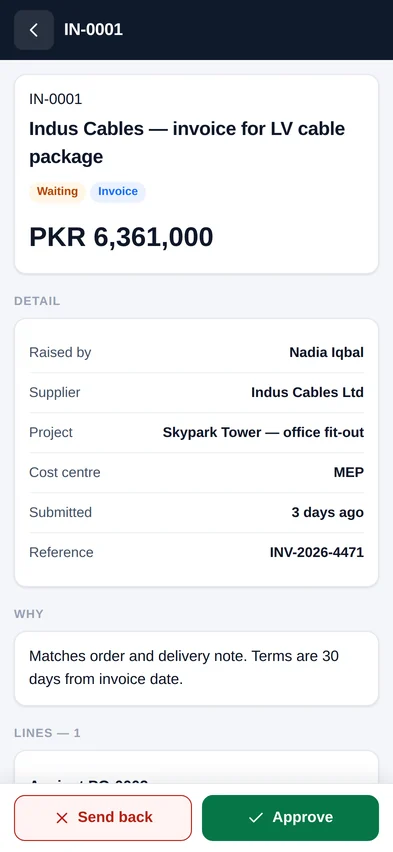
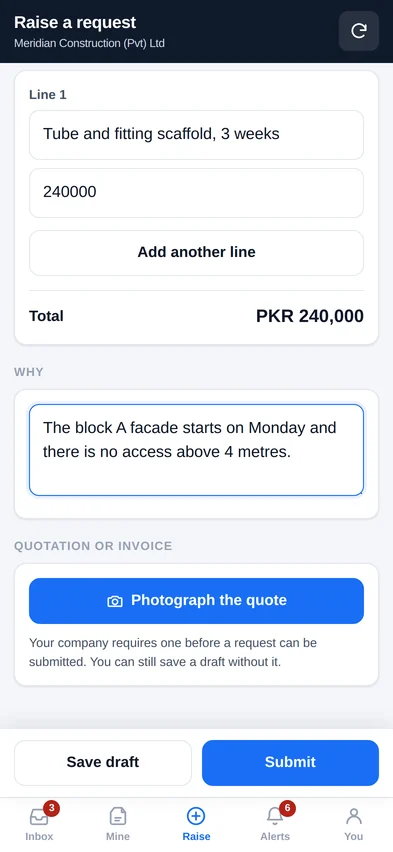
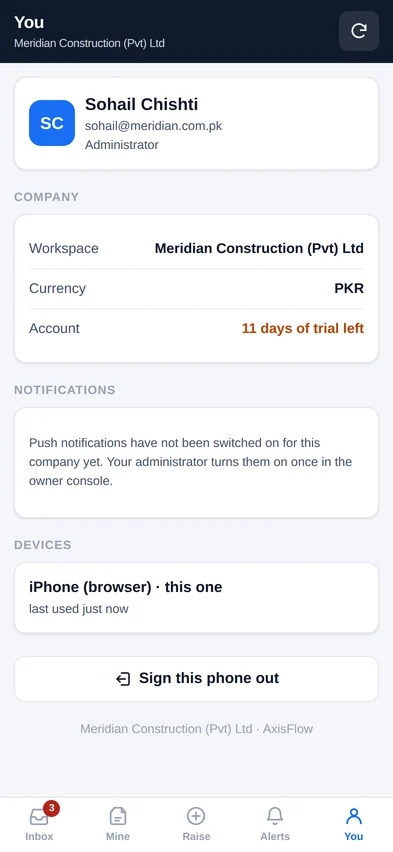
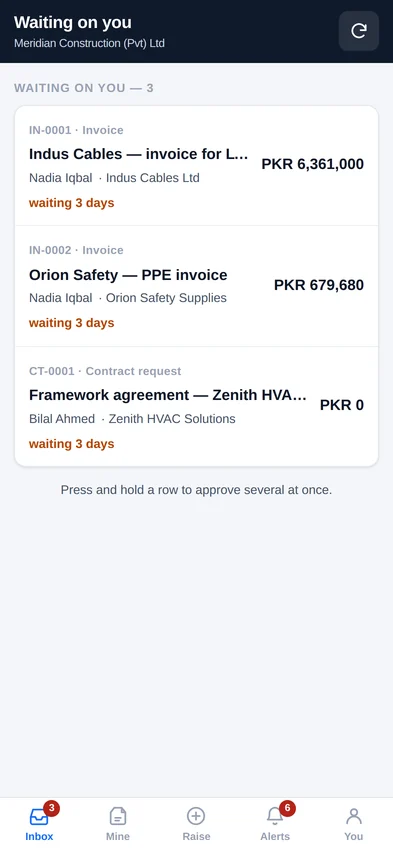
The AxisFlow phone app showing three requests waiting for approval, each with the amount and how many days it has been waiting. A purchase request open on the phone: the amount, who raised it, the budget left, and Approve and Send back buttons at the bottom of the screen. Raising a request on the phone, with lines, a running total and a button to photograph the quotation. The account screen on the phone, listing the devices signed in and the notification settings.

It buzzes when it matters

An approval lands on the lock screen the moment it reaches you, not in tomorrow morning's email. Reminders and rejections do the same; everything else does not, which is why people leave it switched on.

Raise one from site

Photograph the quotation, add the lines, send it. The draft is saved before the photo is uploaded, so a dead spot in a stairwell costs you nothing.

It works with no signal

The app opens and shows what was waiting last time you had a connection. Approving needs the server, because an approval decided offline is an approval somebody else may already have made.

Putting it on your phone

The same account you already use. No separate password, no separate setup — sign in once and the phone stays signed in.

iPhone and iPad

Three taps, and it behaves like any other app on the home screen.

  1. Open unicornaxis.com/approvals/m in Safari
  2. Tap the Share button at the bottom of the screen
  3. Scroll down, tap Add to Home Screen, then Add
  4. Open AxisFlow from the new icon and sign in

It has to be Safari for this — Chrome on an iPhone cannot add an app to the home screen. And notifications only work once it has been added, which is Apple's rule rather than ours.

Open it now

Android

From the Play Store, or straight from the browser — the same app either way.

  1. Search AxisFlow on the Play Store and install it
  2. Or open unicornaxis.com/approvals/m in Chrome and tap Install app when it offers
  3. Sign in with your usual AxisFlow email and password
  4. Say yes when it asks about notifications

If your company has not switched notifications on yet, the app says so on the account screen and everything else still works.

Open it now

Questions people ask first

Do I need a different account?

No. It is the same email address and password you use in the browser. If your address is in more than one company, the app asks which one you want on this phone.

How often will it ask for my password?

Once every three months at most, and the clock resets each time you use it — so a phone in daily use never asks again. A phone left in a drawer stops working, which is the point.

What happens if I lose the phone?

Sign in anywhere else, open the account screen, and sign that phone out. It stops working immediately and its notifications stop with it. Your administrator can do the same from the people screen.

Can I approve everything at once?

Press and hold a row to start picking, then tap the rest. Each one is still decided on its own and recorded on its own — if a rule stops one of them, the others go through and you are told which did not.

Does it drain the battery?

No. Nothing runs in the background. A notification arrives through the phone's own push service, which is the same one your messages use.

Can somebody read our documents if they get the phone?

Only if the phone itself is unlocked — the app sits behind the phone's own lock screen like everything else. Nothing is stored on the phone except a list of what was waiting, and signing the device out from elsewhere clears its access straight away.
It is already there

The phone app is part of AxisFlow, not an extra. Every plan includes it, for everybody in the workspace.