AVAxisView

A walk through

Fifteen screens, and who gets to see which.

Every picture below is the real product, photographed from a sample workspace belonging to a fictional fit-out contractor on a fictional job. Nothing here is a drawing.

The first screen

Everything that matters, before anybody scrolls.

A countdown to the programme date, six tiles across the top, a gauge of actual against planned, the S-curve, and a donut of work packages by status. If a job is in trouble, this screen says so without being asked.

  • Overall complete, and how far off the plan that is
  • Schedule index — above 1.00 is ahead, below is behind
  • Packages complete, and how many need attention
  • On site today, counted at the gate
  • Certified to date against the revised contract sum
axisview — overview
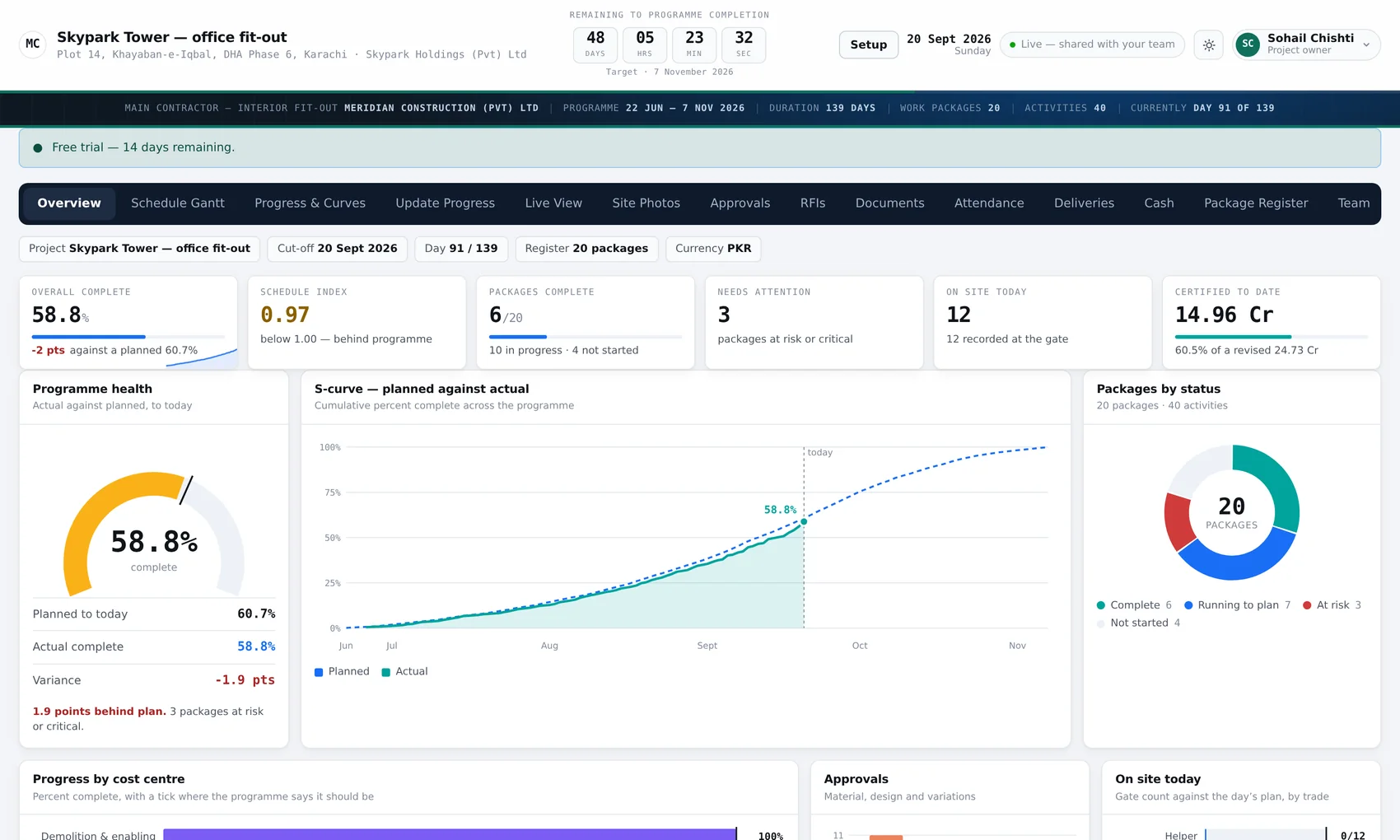
The AxisView overview: KPI tiles, a gauge reading 58.8% complete, an S-curve of planned against actual, and a donut of 20 work packages by status.
1.9 points behind plan, three packages at risk — and it says so.

Programme

The Gantt, and the curve it produces.

Load packages and activities with dates once. After that, the site records percent complete against activities and everything on these two screens follows from it.

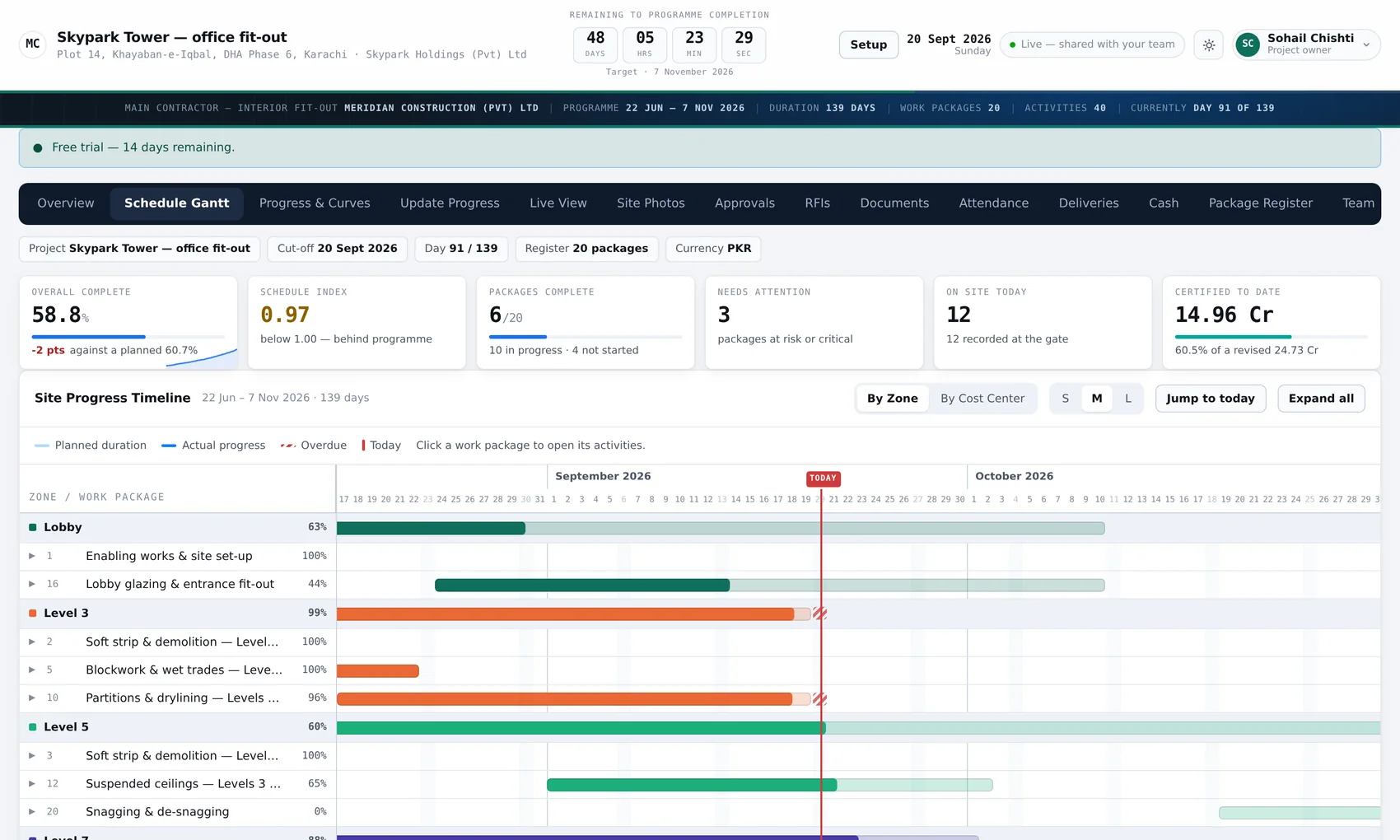
axisview — schedule
The AxisView Gantt chart with work packages and activities and their progress shaded against each bar.
Packages, activities, dates and progress against each.
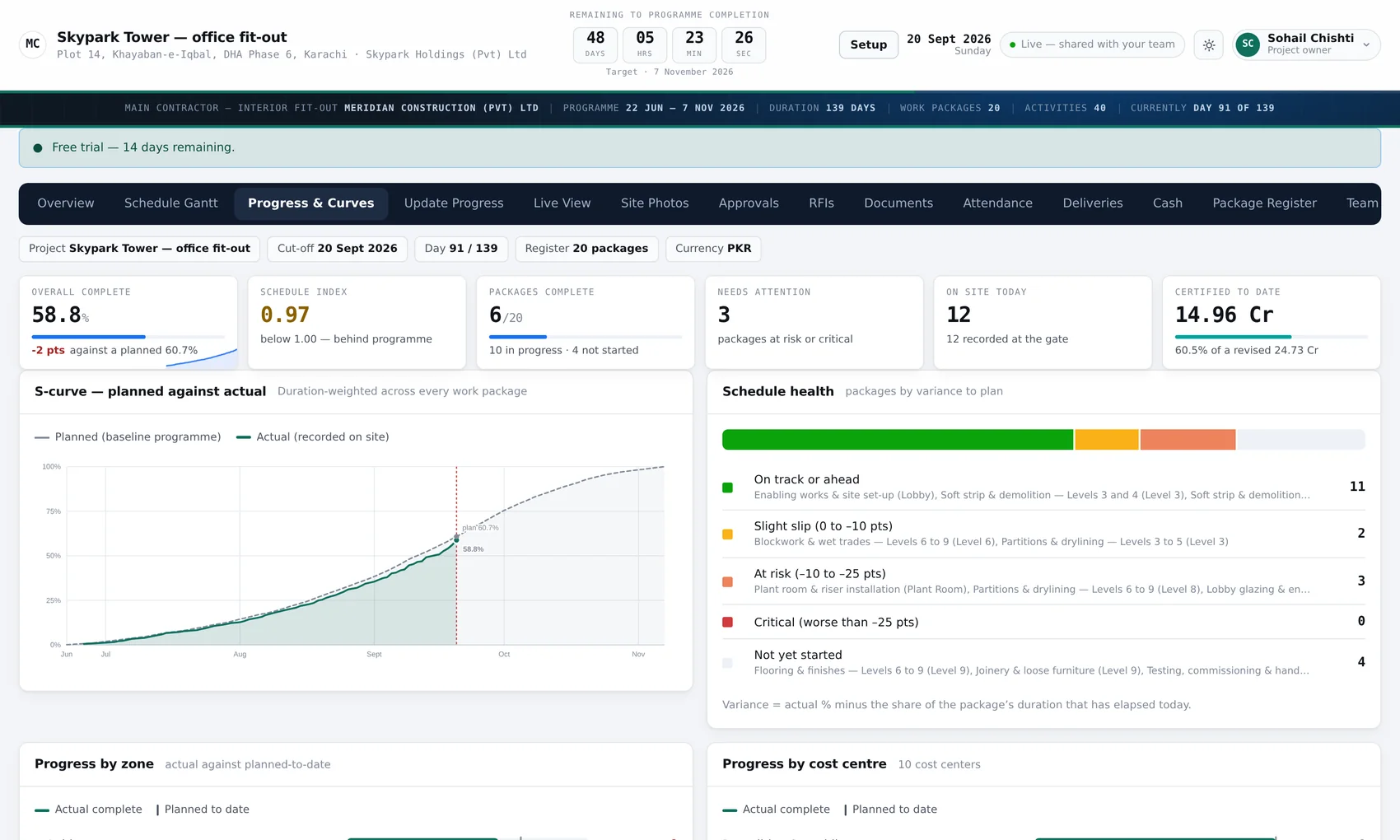
axisview — progress & curves
The AxisView progress and curves screen: cumulative planned against actual progress over the programme.
Planned against actual, and the gap between them.

Evidence

Photographs that know where they were taken.

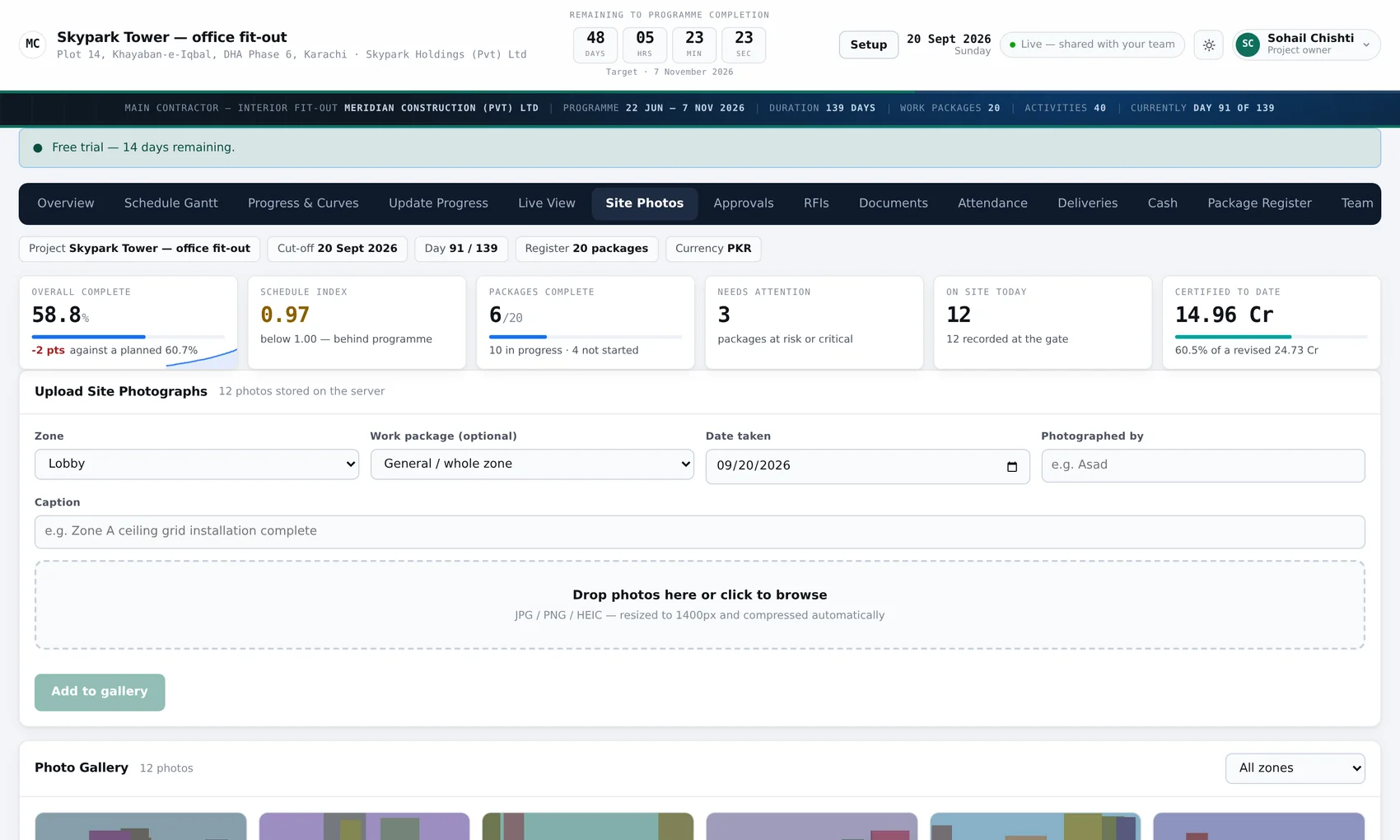
Every photograph carries a zone, a work package, a date and who took it. Filter by zone and you have the history of a floor; open one and you have the day. Six months later that is the difference between a record and a folder of files called IMG_4417.

axisview — site photos
The AxisView site photographs screen: an upload panel asking for zone, work package, date and caption, above a gallery of thumbnails.

The registers

Submittals and RFIs, with the dates that actually bite.

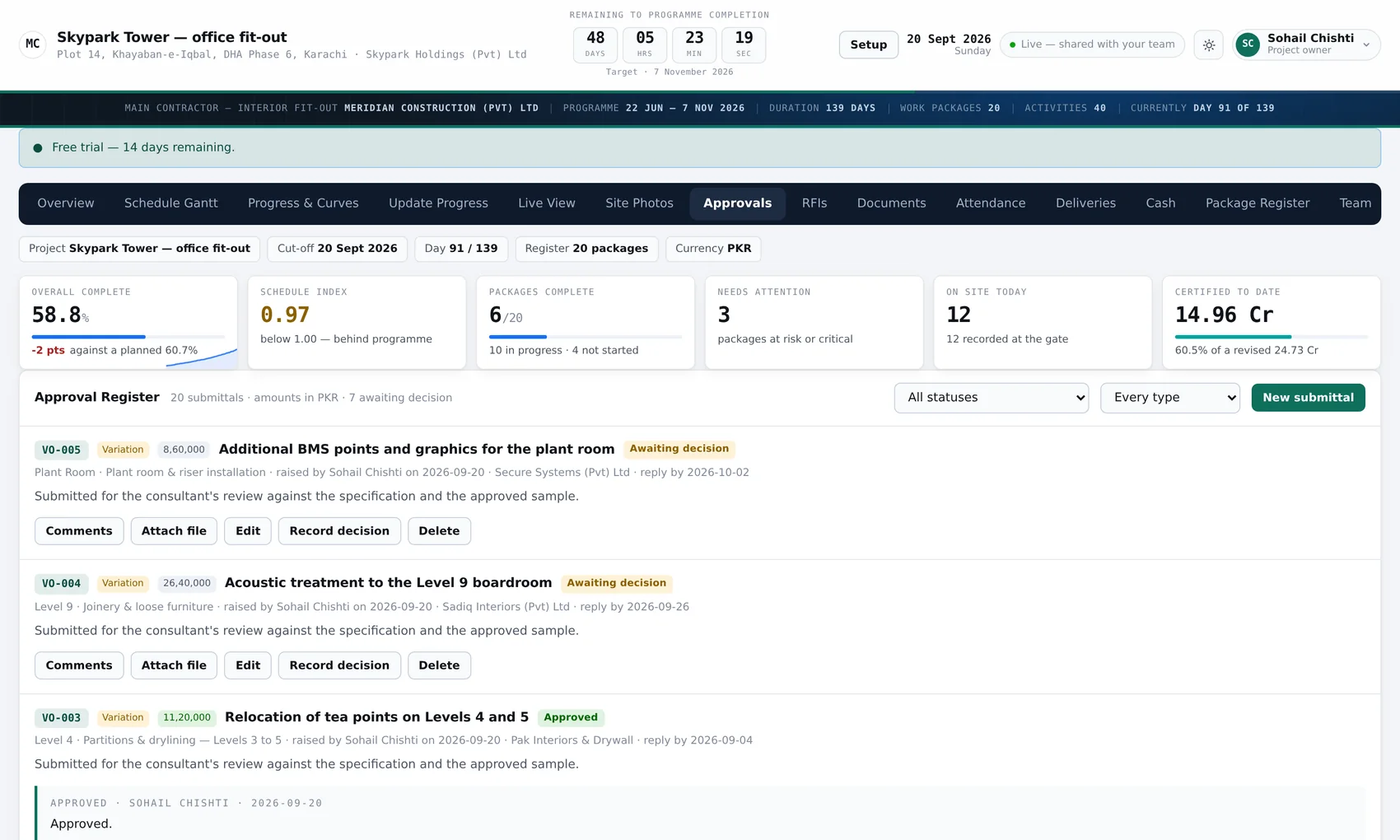
Material and design submittals, variation orders, and requests for information — each with a status, a person and a date it was needed by. Anything overdue is red before somebody raises it in a meeting.

axisview — approvals
The AxisView approvals register listing material and design submittals and variation orders with their references, status and due dates.
Submittals and variations, with what each is waiting on.
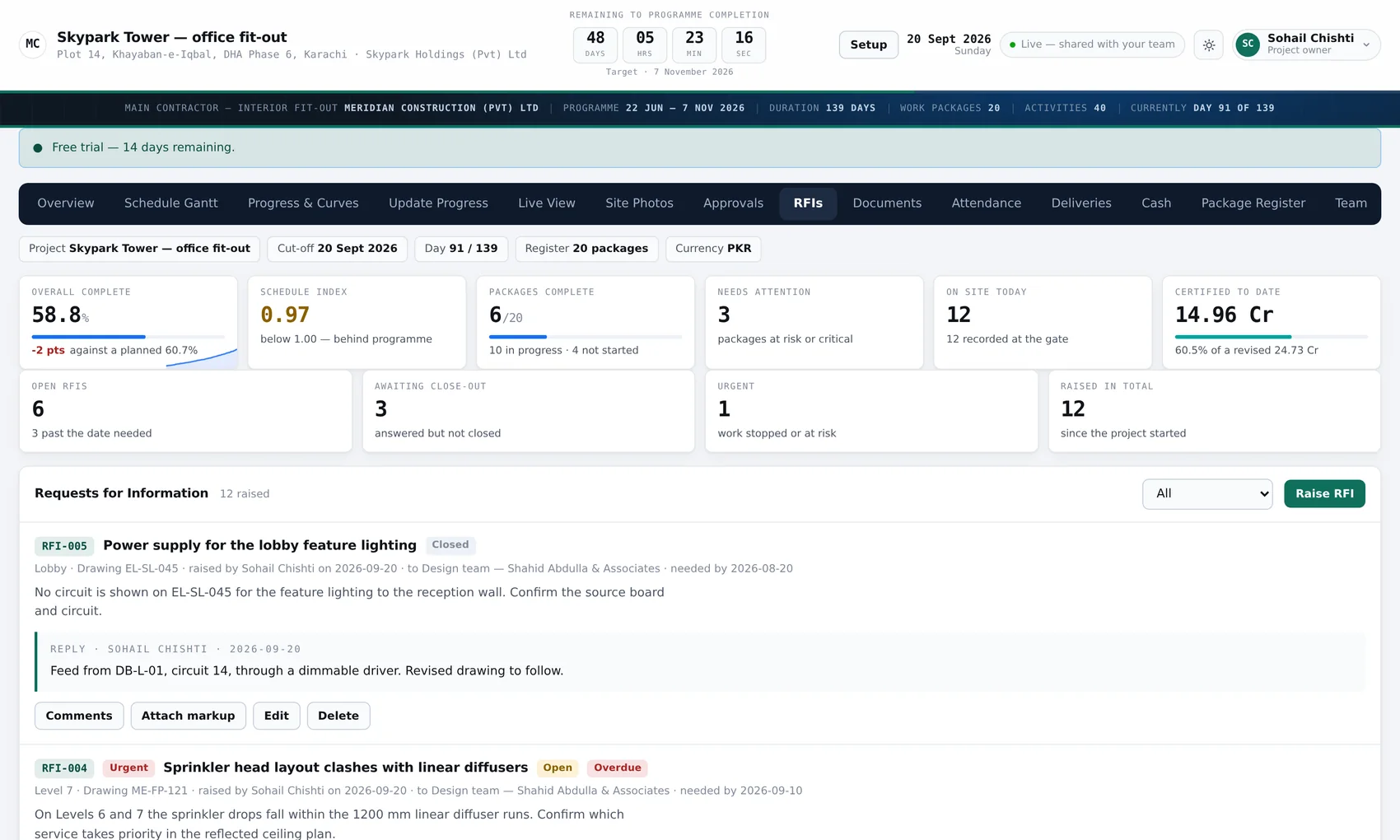
axisview — RFIs
The AxisView RFI register listing requests for information with who raised each one, who owes an answer, and how overdue it is.
Who owes an answer, and for how long they have owed it.

The gate

Attendance and deliveries, recorded by the hardware.

Both of these are usually a clipboard that gets typed up on a Monday. Here the gate writes them as they happen.

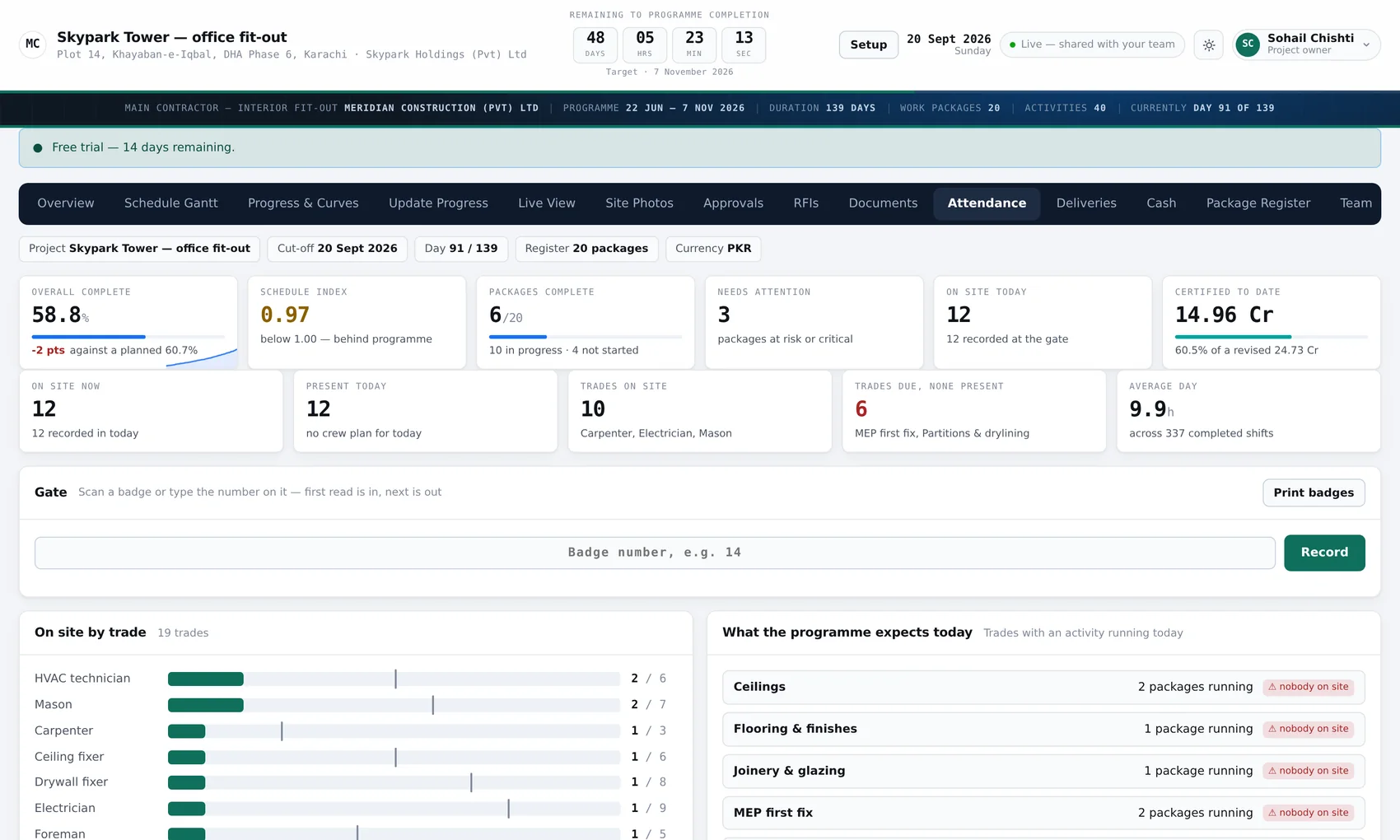
axisview — attendance
The AxisView attendance screen: head-count by trade against the day's plan, with a history of man-days over recent weeks.
By trade, against the day's plan.
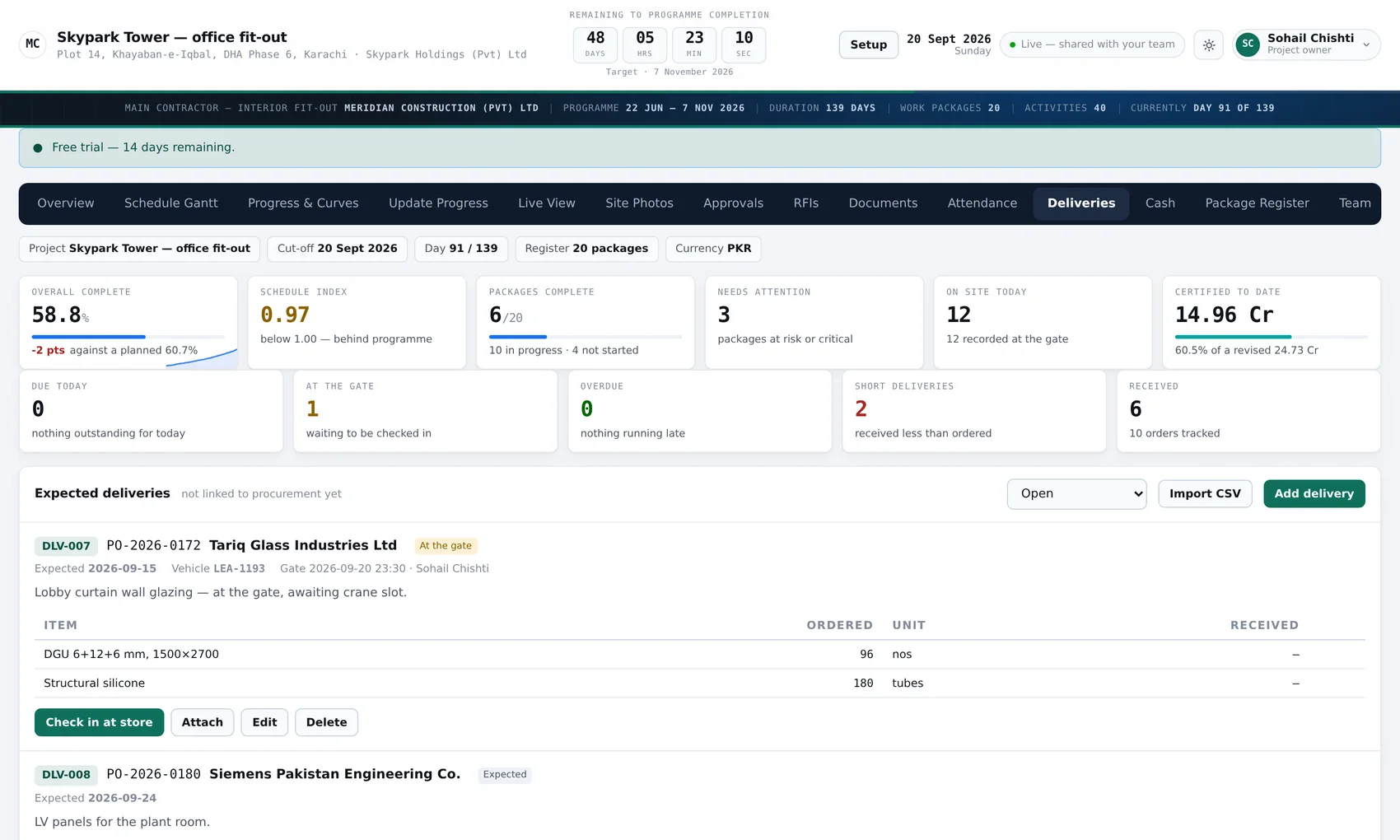
axisview — deliveries
The AxisView deliveries screen listing expected, at-gate, received and closed deliveries with quantities and any shortfall.
Expected, at the gate, received — and anything short.

The commercial position

What it was worth, what it is worth now, and what has been certified.

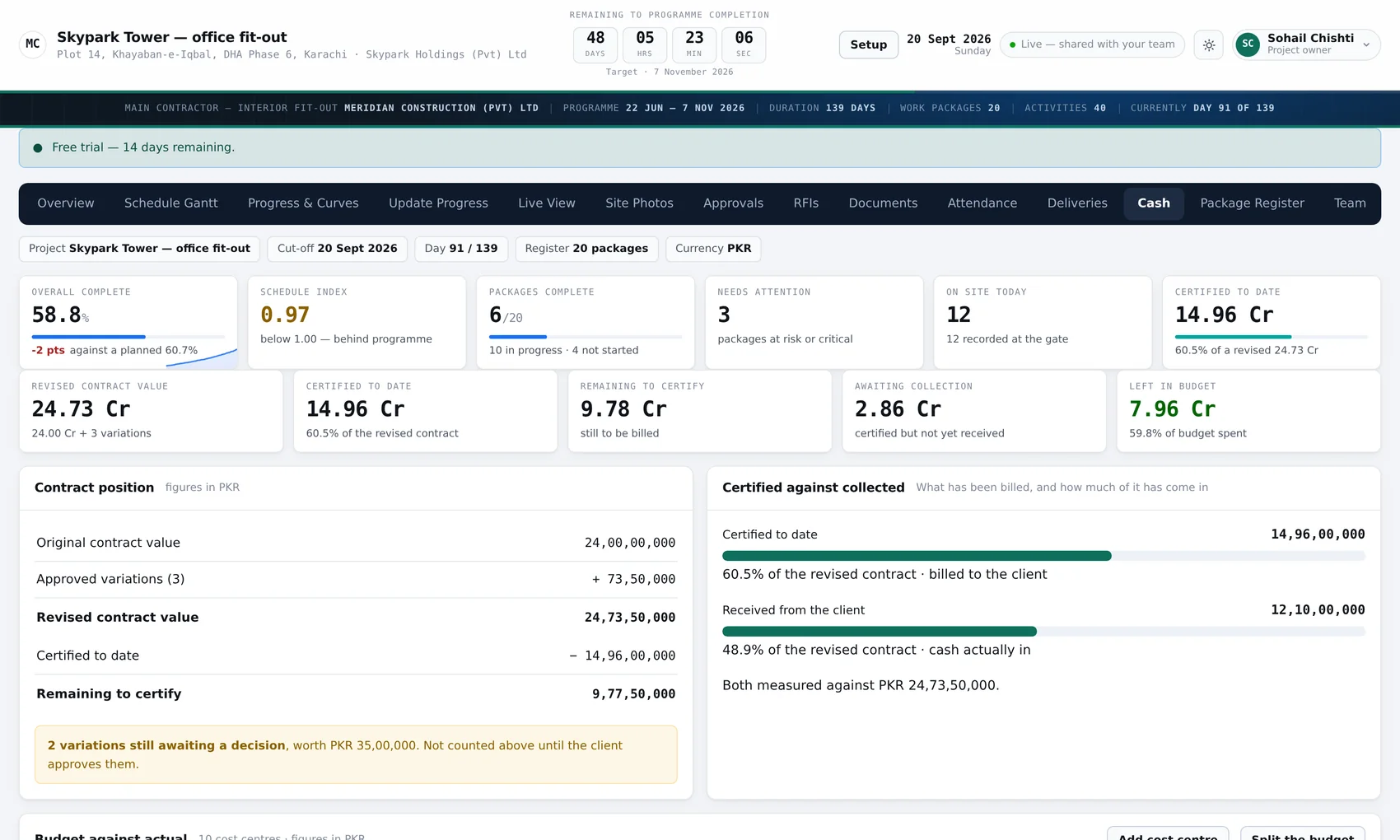
Contract sum, variations, revised sum, certified to date and spend — with budget per cost centre underneath. On the same screen as the progress, because the only question worth asking is whether the two match.

  • Variations tracked against the original sum
  • Certified as a figure and as a percentage of the revised total
  • Budget by cost centre, with spend read from your accounting system
  • Read-only from the accounts — AxisView never writes a figure back
axisview — cash
The AxisView cash screen: contract value, variations, certified to date and spend, with budget bars for each cost centre.

People

Fifteen screens, and you decide who gets which.

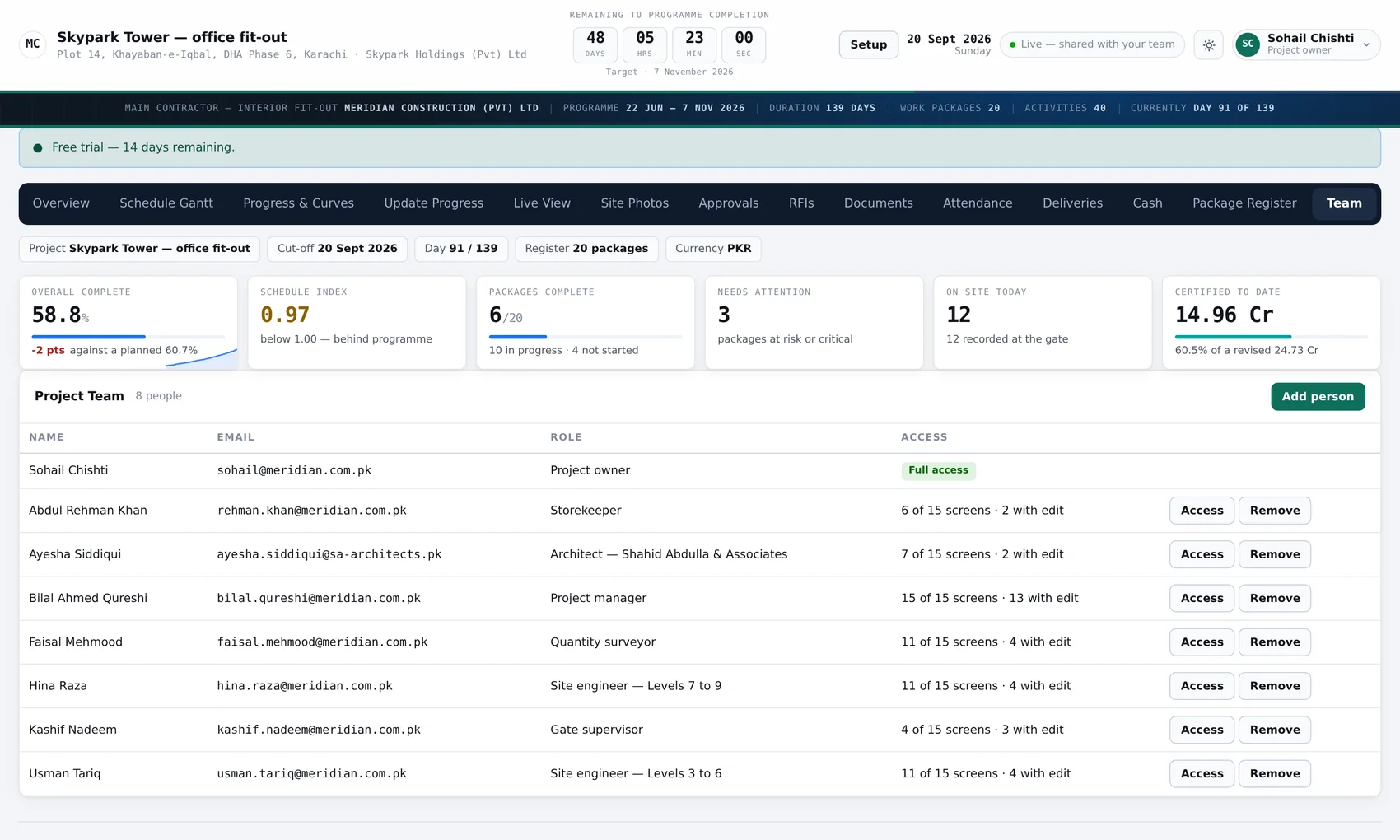
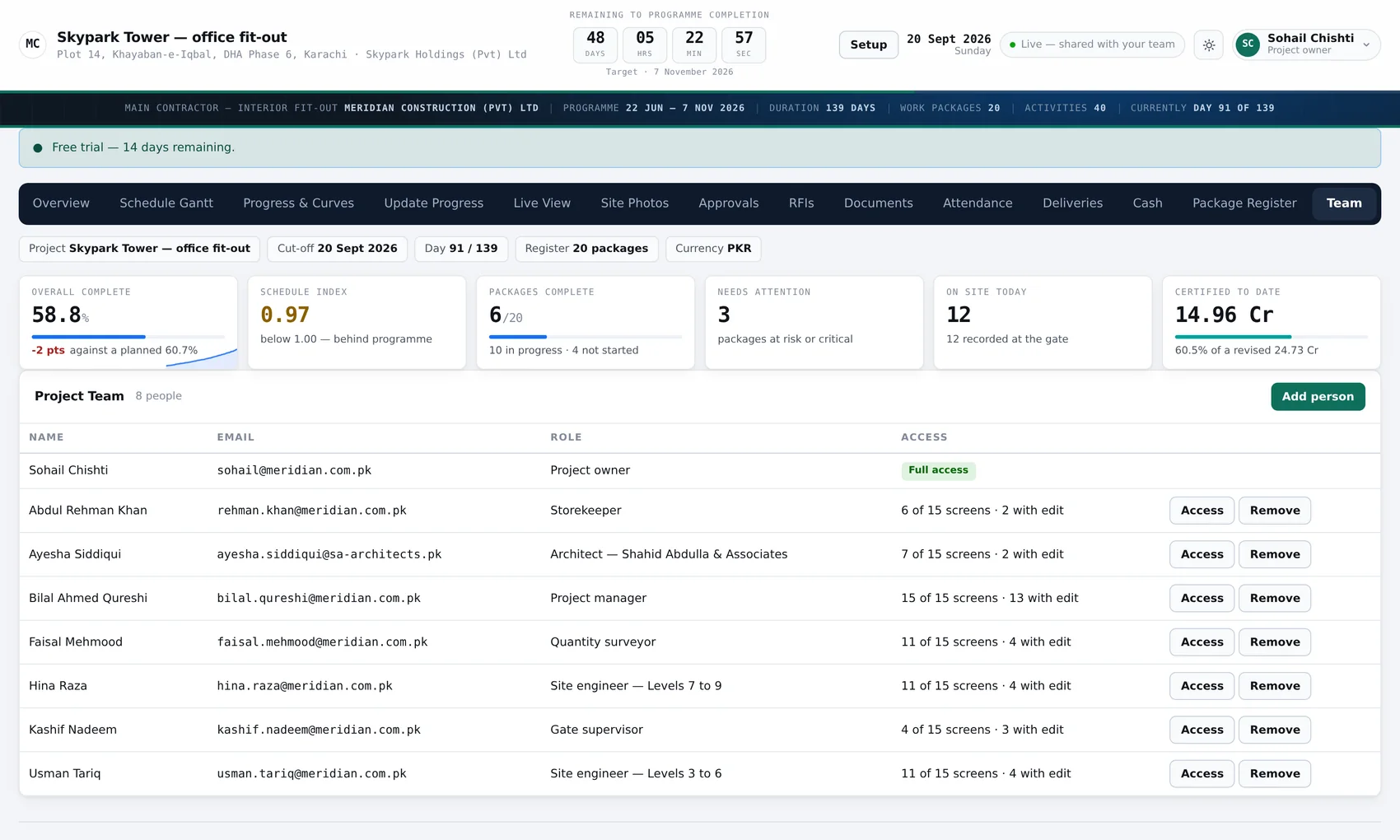
Every person has a level on every screen: none, view, or edit. A site engineer updates progress and photographs. The QS gets cash. The client gets the programme and the pictures and nothing else. There is no role you have to accept whole.

  • Per-person, per-screen — not a fixed set of roles
  • Presets to start from, then change whatever does not fit
  • The project owner adds their own people; you never have to
  • Somebody leaves and you switch them off — their record of what they did stays
axisview — team
The AxisView team screen listing people with their titles and a grid of per-screen permission levels.

On a phone

Because the person with the answer is standing on level 7.

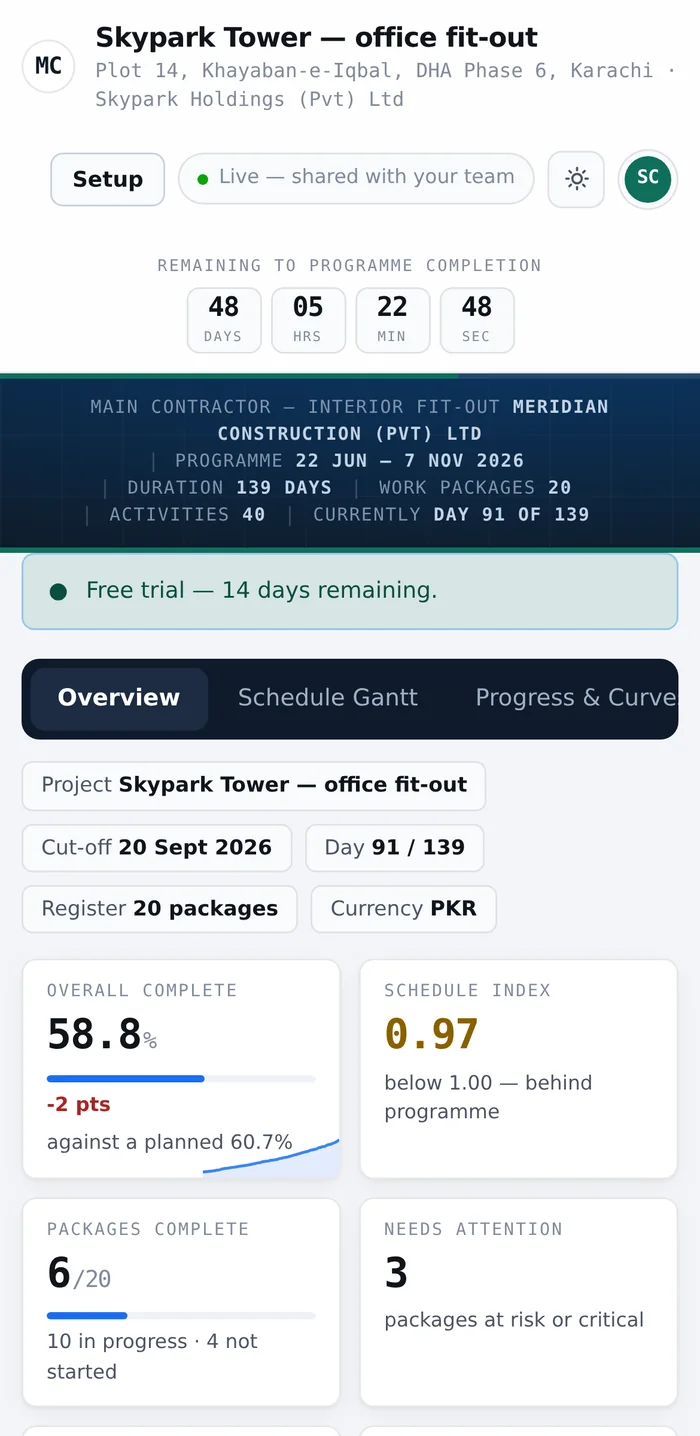
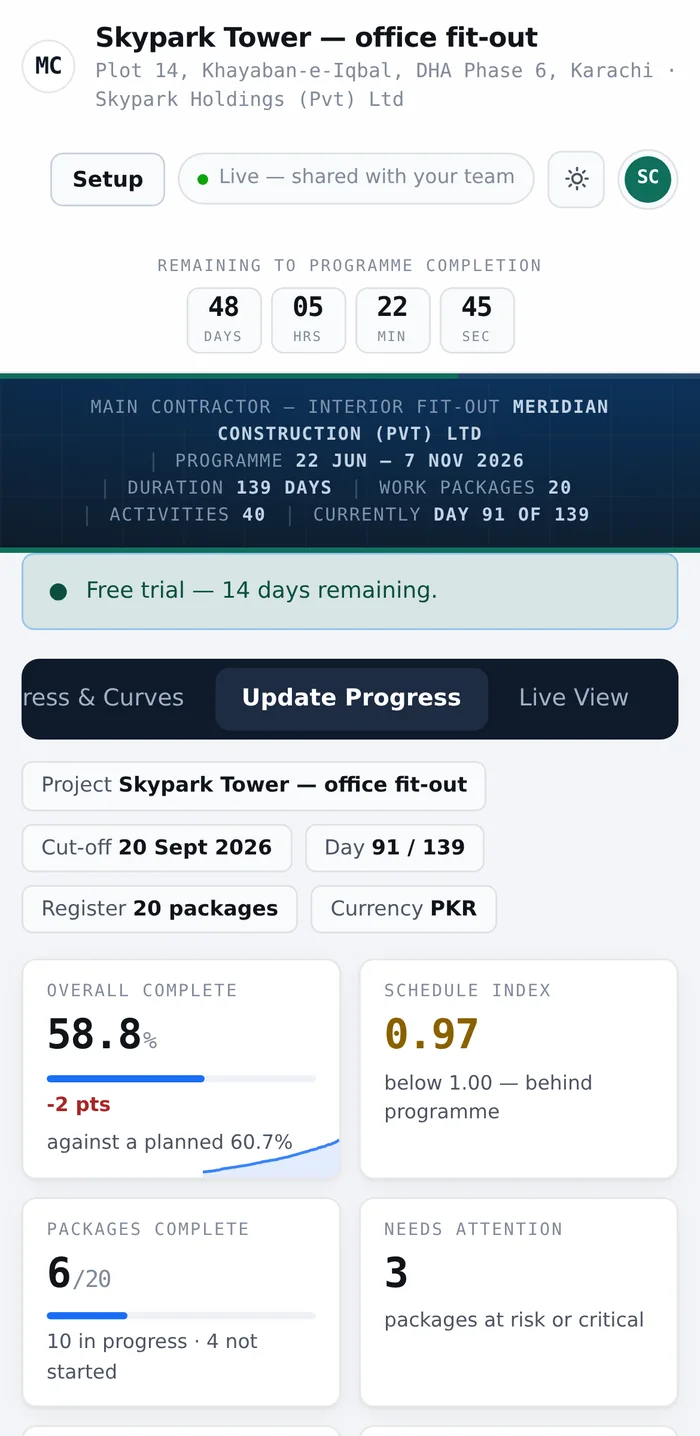
The same screens, laid out for a phone — not a separate app to install and not a cut-down version. Percent complete, a photograph, a delivery or an RFI, recorded where the work is rather than remembered until somebody gets back to a desk.

There is nothing to download. It is a web address.

AxisView on a phone: the overview screen. AxisView on a phone: updating progress against an activity.

Getting started

One form, and you are in.

Your company, your name, an email, a password and what the job is called. That makes the account and the first project together, and puts you straight into the setup wizard for it. No sales call, no card, nothing to install.

If your team already uses AxisFlow or the accounting system, skip the form — those credentials work on the sign-in box.

axisview — start a site
The AxisView signup form asking for company, name, email, password, job name and plan.

Have a look at it with your own job.

Signing up takes a minute and the free plan does not expire. Load one programme and you will know within the hour whether it suits you.